How to setup Queue Call Back
It is possible to setup a Call Back within the Queues, so that callers do not wait in the queues for a long time.
Once they choose that option the Cloud PBX stores the Call Back and when an available agent becomes free the system will call back that same customers and then connects both calls.
This is how to properly setup:
STEP 1
- You need 3 recordings
- (a) To inform customers while on queue that plays PERIODICALLY to press 0 for someone to call them back when an agent is available.
- (b) Recording for when the receive a call back saying something along these line “ This is a Callback service from “COMPANY NAME”
- (c) Last recording: "TO ACCEPT CALL PRESS 1 or DECLINE CALL PRESS 2"
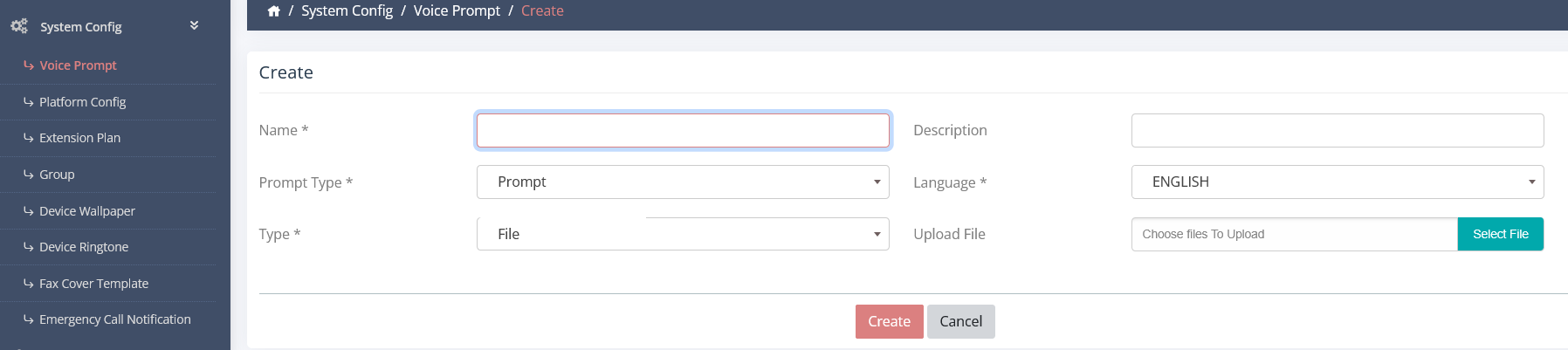
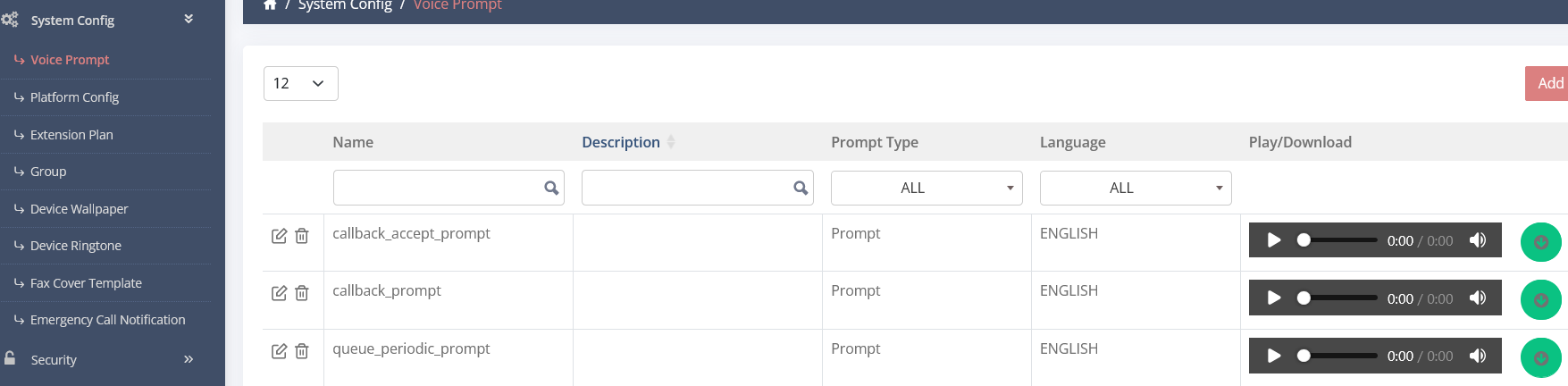
Upload the 3 recording
- SYSTEM CONFIG - VOICE PROMPTS and name them what ever you like (in the example will name them (a) queue_periodic_prompt / (b) callback_prompt / (c) callback_accept_prompt
STEP 2
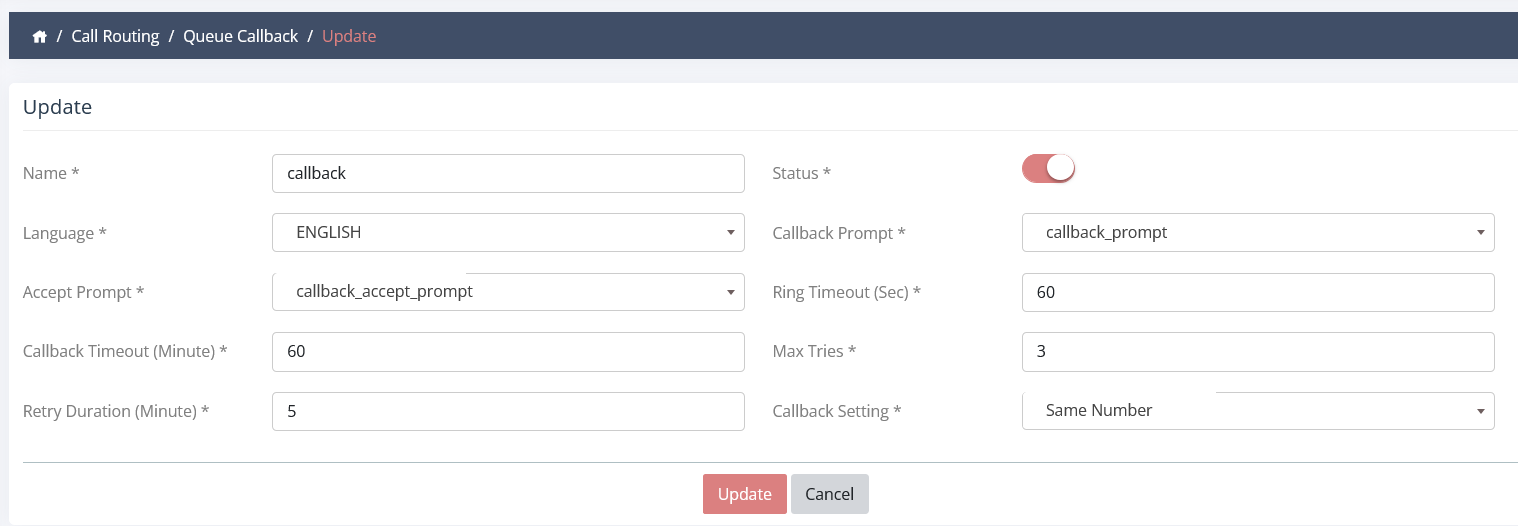
- Goto CALL ROUTING - QUEUE CALLBACK
- click on ADD NEW to create a new call back
- Create Callback:
- Name - anything you like
- Language ENGLISH
- Use the appropiate sound file (in the example will use (b) for Callback Promt and (c) for Accept Promt. other settings leave as default unless you want something different.
- Save
STEP 3
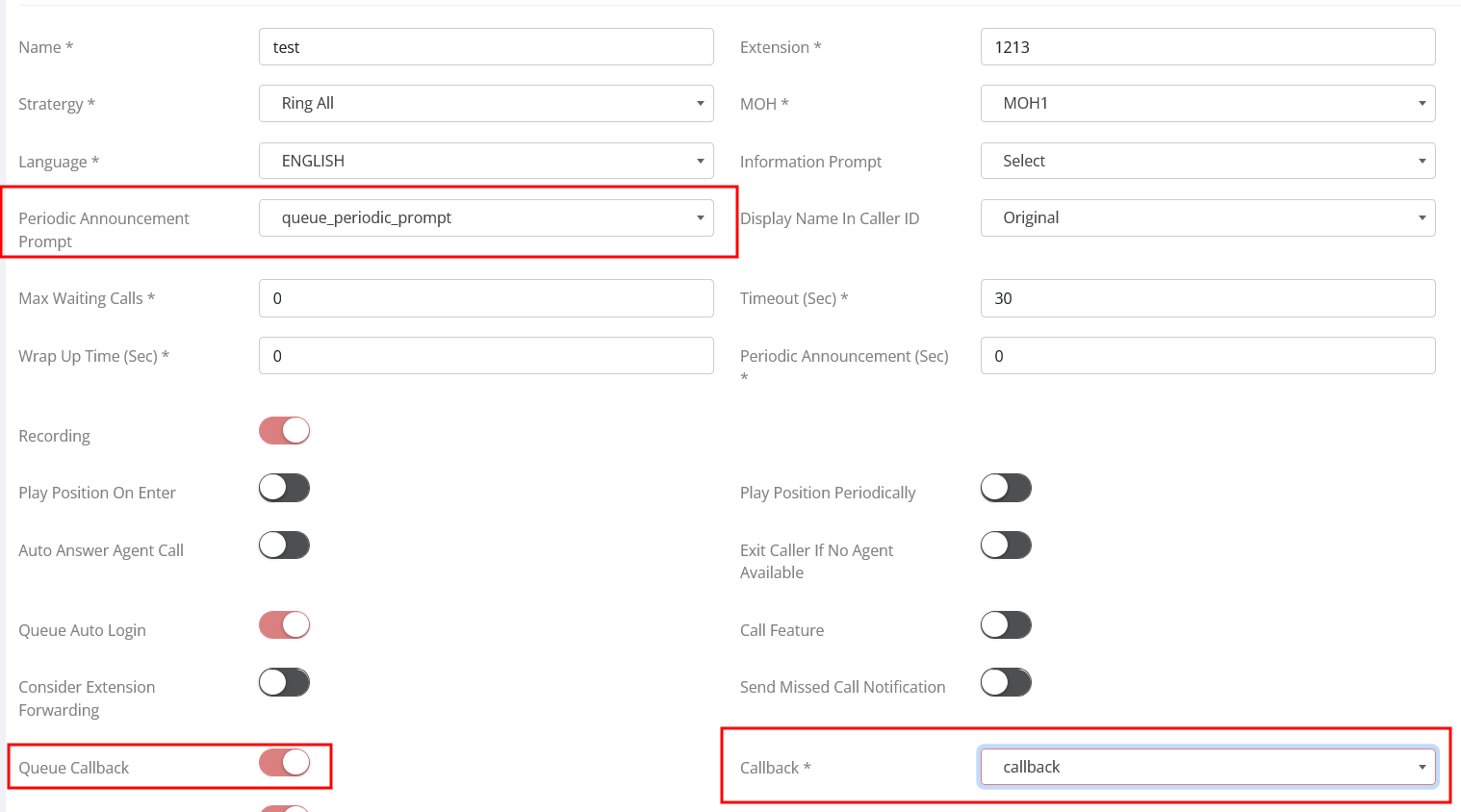
- Goto to the SERVICE - QUEUES and EDIT the queue you want to setup CALLBACK
- In Periodic Announcement Prompt select recording (a) queue_periodic_prompt
- Activate QUEUE CALLBACK
- SAVE
Callback is now fully setup. When a caller is on the queue waiting, periodically they hear an announcement to press 0 for someone to give them a call back. When pressing 0, the system will store the call and when an agent is available the Cloud PBX will initiate a call to that customer. Once the customers answers the call they will hear a recording you uploaded and IF they accepts the call, it will be connected to an agent.